The Complete StreamYard Guide: How to Livestream, Record, and Run Webinars Like a Pro (2026)
What Is StreamYard?
StreamYard is a browser-based live streaming studio that works entirely inside Google Chrome, with no software download required. It allows creators, marketers, and businesses to:
- Live stream to multiple social platforms simultaneously
- Record high-quality podcasts and video content
- Host structured, Zoom-like on-air webinars with registration
- Store and reuse past broadcasts in a built-in content library
Because it runs in the browser, StreamYard is popular with marketers, coaches, and small businesses who want professional-looking broadcasts without investing in dedicated broadcast software or hardware encoders.
Pro tip: Chrome is the recommended browser. Safari can restrict screen-sharing audio and cause playback issues during presentations.
Why Live Streaming Builds Trust and Sales
In a marketplace full of scams and low-trust online transactions, live video is one of the fastest ways to build credibility. When your audience can see your face, hear your voice, and interact with you in real time, they feel safer buying from you.
Live streaming and webinars help brands:
- Humanize their business and reduce buyer hesitation
- Answer objections in real time through comments and Q&A
- Build a searchable content library of expertise (great for SEO)
- Convert cold audiences into warm leads through registration data
This is one of the core reasons why marketing professionals increasingly treat livestream webinars as a top-of-funnel, trust-building tool rather than just a broadcast format.
Getting Started: Setup and Login
- Go to StreamYard in Chrome and log in with your Gmail account.
- First-time users receive a verification code by email and enter it to access your dashboard.
- Once inside, you'll land on the Home/Library page, which stores every past broadcast for later viewing or repurposing.
- Toggle Dark Mode on or off as you prefer.
The Three Core StreamYard Modes
StreamYard offers three primary ways to create content:
1. Live Streaming
Broadcast in real time to up to 10 destinations at once, including YouTube, Facebook, LinkedIn, Instagram, and X (Twitter).
2. Recording
Don't want to go live immediately? Record your session privately and publish it whenever you're ready, ideal for podcasts and pre-produced video.
3. On-Air Webinars
This mode behaves like Zoom: up to 10 people can actively speak on stage, while an unlimited audience watches as spectators. Attendees can register ahead of time, giving you their name, phone number, and email for follow-up marketing. On-air webinars require the top-tier paid plan.
How to Set Up a Multi-Platform Live Stream
- Click Create a Livestream (or Create a Broadcast).
- Select your destination(s): LinkedIn, Facebook, YouTube, Instagram, X, etc. You can add several at once.
- For each destination, customize the title, description, and thumbnail individually.
- Choose either Go Live Now or Schedule for Later.
- Scheduled streams automatically appear on your connected social pages ahead of time, so followers can set reminders and register.
- Scheduled sessions show up under Scheduled Meetings in your dashboard; click Enter Studio when you're ready to begin.
Multi-platform tip: StreamYard automatically detects and adjusts for each platform's required aspect ratio; for example, Instagram defaults to portrait orientation, while LinkedIn and YouTube default to landscape. You don't need to manually resize your stream for each network.
Inside the Studio: Audio, Video, and Camera Settings
Before going live, configure your gear under Settings:
- Audio: Go to Settings → Audio to select your microphone and speaker. Use the built-in test tone to confirm your mic is picking up sound. External microphones connected via USB or cable will appear automatically once plugged in.
- Camera: Choose your resolution; 1080p (Full HD) is recommended for most setups. 4K is available but can slow down lower-powered machines.
- Visual effects: Background blur is available directly from the camera settings panel if you don't want a fully virtual background.
Recommended setup: Use two screens (a laptop plus an external monitor) if you plan to present slides. It makes switching between your presentation and the live studio view much smoother.
Inviting Guests vs. Audience Members
This is one of the most misunderstood parts of StreamYard, so it's worth being precise:
Link
Type
Who It's For
Where They Land: Guest link: speakers/co-hosts who will appear on camera.
Inside the StreamYard studio: Audience link.
Viewers who are just watching. The social media platform (YouTube, Facebook, etc.)
To invite a guest:
- Click the + (Add Person) icon.
- Copy the invite link.
- Send it directly to your guest via WhatsApp, email, or SMS.
- Once they join the waiting area, click Add to Stage to bring them into the live broadcast.
You can rearrange the layout at any time, side-by-side, full-screen speaker view, or custom multi-guest layouts, all from the studio interface.
Sharing Your Screen and Presentations
There are two ways to present slides inside StreamYard:
- Upload directly: Click the presentation icon → Slides and PDFs → Your Computer → upload your file. StreamYard renders it natively, and you can navigate slides while StreamYard tracks your position; useful because you keep full control without exposing your desktop.
- Share your screen: Use the Share Screen option to display your slideshow (or any application window) live. This is the more flexible option if you're jumping between multiple tools during a session.
Once a presentation or screen share is active, click Add to Stage so viewers can see it, and Remove from Stage when you're done, returning to your camera view.
Branding Tools: Banners, Logos, Overlays, and Backgrounds
StreamYard includes a full suite of on-screen branding tools:
- Lower-thirds banners: Great for communicating a message (a phone number, website, or CTA) without interrupting the conversation. Create custom text, choose scroll speed (normal/slow/quick), and set a display timer.
- Logo placement: Available on paid plans only; free-tier broadcasts always display the StreamYard watermark. Upload a logo at sufficient resolution and choose its screen position.
- Overlays: Upload static images or full-motion video overlays (e.g., "Follow us on social media") that appear on top of your feed while your voice continues in the background.
- Intros, outros, and loops: Add a professional countdown or bumper video before your stream begins. When a loop plays, your live mic automatically mutes so it doesn't overlap the video.
- Custom backgrounds: Upload a branded virtual background sized to StreamYard's recommended dimensions (1280×720) for a polished, on-brand studio look.
- Sound bites and background music: Add sound effects or ambient music beds to enhance production value.
- Layout styles: Switch between name-tag styles (Bubble, Classic, Minimal, and more) and adjust accent colors to match your brand.
Using the Built-In Teleprompter
StreamYard includes a native teleprompter; a major advantage for anyone who wants to maintain eye contact with the camera while following a script or talking points.
How it works:
- Type or paste your talking points into the teleprompter panel.
- Press play; the text scrolls automatically.
- Adjust scroll speed up or down as needed.
- Only you can see the teleprompter text; viewers only see your camera feed.
Pro tip: Position the teleprompter directly on the same screen as your camera (rather than a second monitor) so your eyeline stays locked on the lens. This creates the illusion of natural eye contact even while reading prepared notes; a small trick that makes a huge difference in how "produced" and confident your broadcast feels.
Polls, QR Codes, and Audience Engagement
To keep viewers engaged and drive real action, StreamYard supports:
- Live polls: Create yes/no or multiple-choice questions on the fly and display results in real time.
- QR codes: Add a QR code overlay linking directly to a website, product page, or lead magnet; ideal for driving traffic to books, courses, or offers while you're talking.
- Private chat with guests: Send side messages to a co-host during the broadcast without the audience seeing them; useful for cueing transitions or sharing quick notes.
- Cross-platform comments: View comments from YouTube, Facebook, LinkedIn, and Instagram in a single unified feed inside the studio.
Limitation to know: You can view comments from every platform in one place, but you can only reply to comments from within StreamYard if certain plan/platform conditions are met; otherwise, you'll need to respond natively on each platform.
Repurposing Content with AI-Generated Clips
After a broadcast ends, go to your library, click the recording, and select Generate Clips. StreamYard's AI scans the full recording and automatically produces short-form clips optimized for social sharing; even flagging which clips have higher predicted "virality" potential.
This is a paid, usage-based add-on (not included free), but it significantly speeds up repurposing a single long-form webinar into multiple short-form posts for Instagram Reels, TikTok, YouTube Shorts, and LinkedIn.
StreamYard Pricing Explained (Free vs. Core vs. Advanced)
The free plan includes:
- StreamYard watermark on all broadcasts
- Streaming limited to roughly one hour per session
- Local recording available after 2 hours
- One user seat (one person managing the studio/page)
- Streaming to a limited number of destinations
Core / paid plan (roughly $39/month) adds:
- Full HD streaming quality
- Streaming to up to 3 destinations simultaneously
- Custom logo placement (no watermark)
- Up to 10 on-screen participants
- Unlimited streaming and recording
- Custom RTMP destinations (stream directly to your own website)
- 50 hours of permanent cloud storage
- Custom intros/outros, AI clip generation, referral support
- 16+ custom layouts, cloud recording, and chat overlays
The advanced plan (roughly $68–69/month) adds:
- On-air webinars (Zoom-style, registration-enabled)
- Up to 4K recording quality
- Support for an extra external camera (e.g., a phone as a second angle)
- On-air webinars supporting up to 100 live viewers
- Custom fonts and downloadable transcripts of your session
Note on pricing: Displayed pricing can vary by account; introductory or promotional rates are sometimes shown to new users, while existing accounts may see different renewal pricing. Always confirm current pricing directly on StreamYard's official pricing page before subscribing, since plans and rates change over time.
How to Structure a Professional Webinar
Regardless of which platform you use, a well-run webinar follows a repeatable structure:
- Set an agenda and prepare talking points in advance. Winging it leads to rambling, repetition, and running over time.
- Open strong. Welcome your audience, introduce yourself briefly, and use an icebreaker; for example, ask attendees to share their name and location in the chat. This helps people settle in and feel involved immediately.
- Stick to your prepared points. Preparation prevents the common trap of stopping mid-sentence to backtrack ("I should have mentioned this earlier...").
- Actively engage your audience throughout, not just at the end. Ask questions, invite comments, and involve viewers directly, especially in interview-style formats, where it's easy to accidentally exclude the audience entirely.
- Leave room for live Q&A. Give attendees a real chance to ask questions before closing.
- End with a clear call to action. Every webinar should conclude with one specific next step: download an app, buy a product, book a call, or join a list. Reinforce it visually with a lower-thirds banner or on-screen overlay so it isn't missed.
Frequently Asked Questions
Is StreamYard free to use?
There is a free plan, but it includes a StreamYard watermark, limited streaming time, only one user seat, and fewer destinations. Full functionality, no watermark, multi-destination streaming, more participants, and AI clip generation require a paid plan.
Can I stream to multiple social media platforms at the same time with StreamYard?
Yes. StreamYard supports simultaneous multistreaming to up to 10 destinations, including YouTube, Facebook, LinkedIn, Instagram, and X, each with individually customizable titles, descriptions, and thumbnails.
Does StreamYard automatically adjust video orientation for each platform? Yes. StreamYard detects each destination's required aspect ratio; for example, rendering Instagram in portrait orientation and LinkedIn or YouTube in landscape without requiring separate manual exports.
Can I monitor how many viewers I have on each platform?
StreamYard shows a cumulative combined viewer count across all destinations inside the studio. To see platform-specific numbers (e.g., Facebook viewers vs. LinkedIn viewers), you'll need to check each platform individually, unless you're running an on-air webinar, which provides a more detailed breakdown of who has joined.
What's the difference between a guest and an audience member in StreamYard?
Guests join inside the StreamYard studio itself via a private invite link and can appear on camera. Audience members simply watch the broadcast on the destination platform (YouTube, Facebook, etc.) and are not brought into the studio.
Do I need special equipment to use StreamYard?
No. StreamYard runs entirely in the Chrome browser using your existing webcam and microphone. A second monitor is recommended (not required) if you plan to present slides, and an external microphone will improve audio quality but isn't mandatory.
Can StreamYard generate short clips from my webinar automatically?
Yes. Paid users can use the built-in AI clip generator inside the Library to automatically create short, shareable clips from a longer recording, along with a suggested "virality" ranking for each clip.
Is a recording link provided after a live webinar?
Yes, broadcasts are saved to your StreamYard Library and can be shared as a rewatch link after the session ends.
StreamYard removes most of the technical friction from professional live streaming—no software installs, no encoder setup, and no manual resizing for different platforms. Its real strength is combining multistreaming, a Zoom-style webinar mode, built-in branding tools, and a teleprompter into one browser tab.
But the technology is only half the equation. The webinars that actually convert viewers into customers are the ones with a clear agenda, a strong opening, real audience engagement throughout, and a specific call to action at the end. Master both the tool and the structure, and live streaming will become one of the most effective trust-building channels available to any brand today.
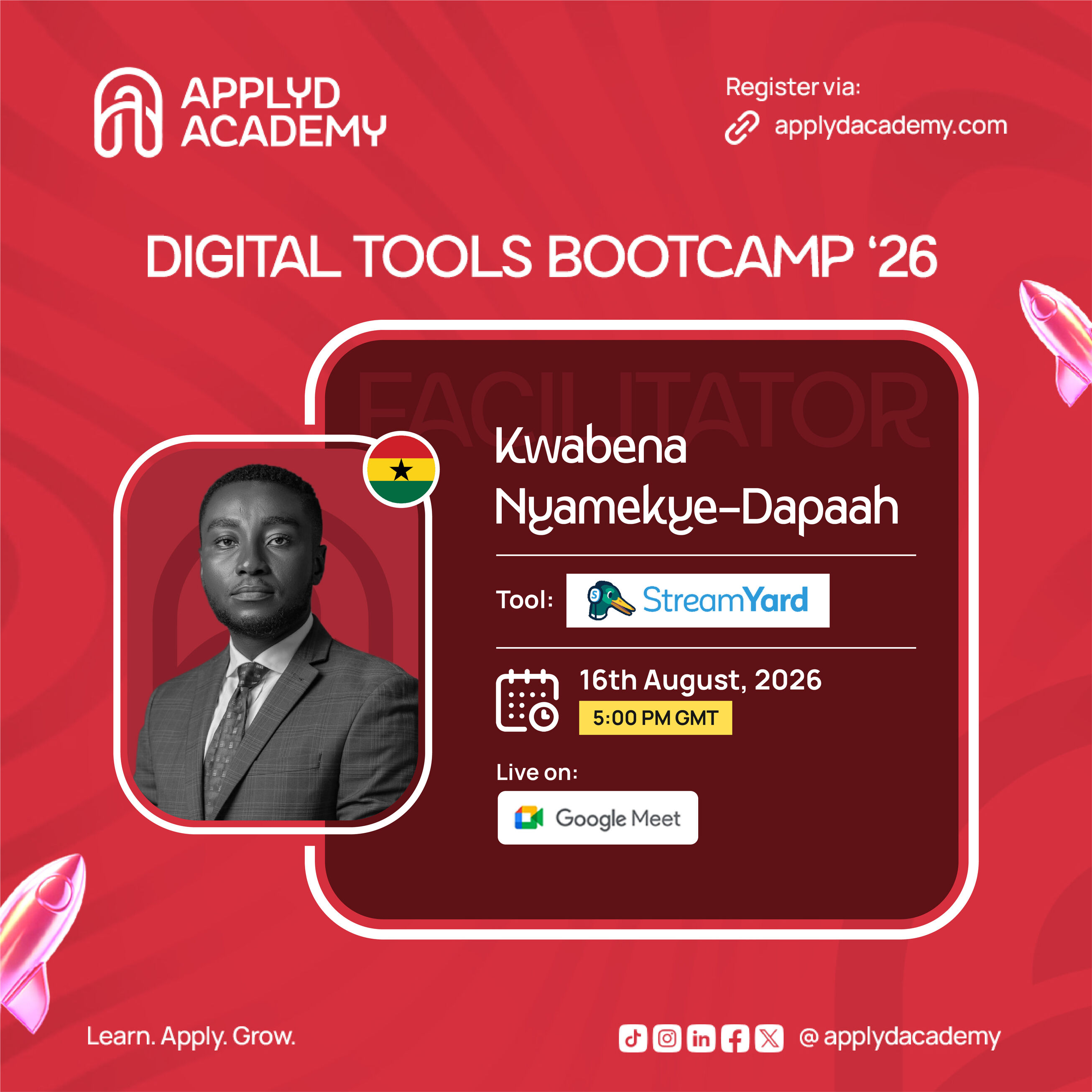
This guide was adapted from a live training session on StreamYard hosted by Applyd Academy and facilitated by a marketing consultant with a decade of experience in the service and hospitality industries.