How to Use Canva for Graphic Design: What Beginners Learned at a Live Masterclass
Many people open Canva for the first time and feel unsure about what to do next. A blank page can feel confusing, even scary.
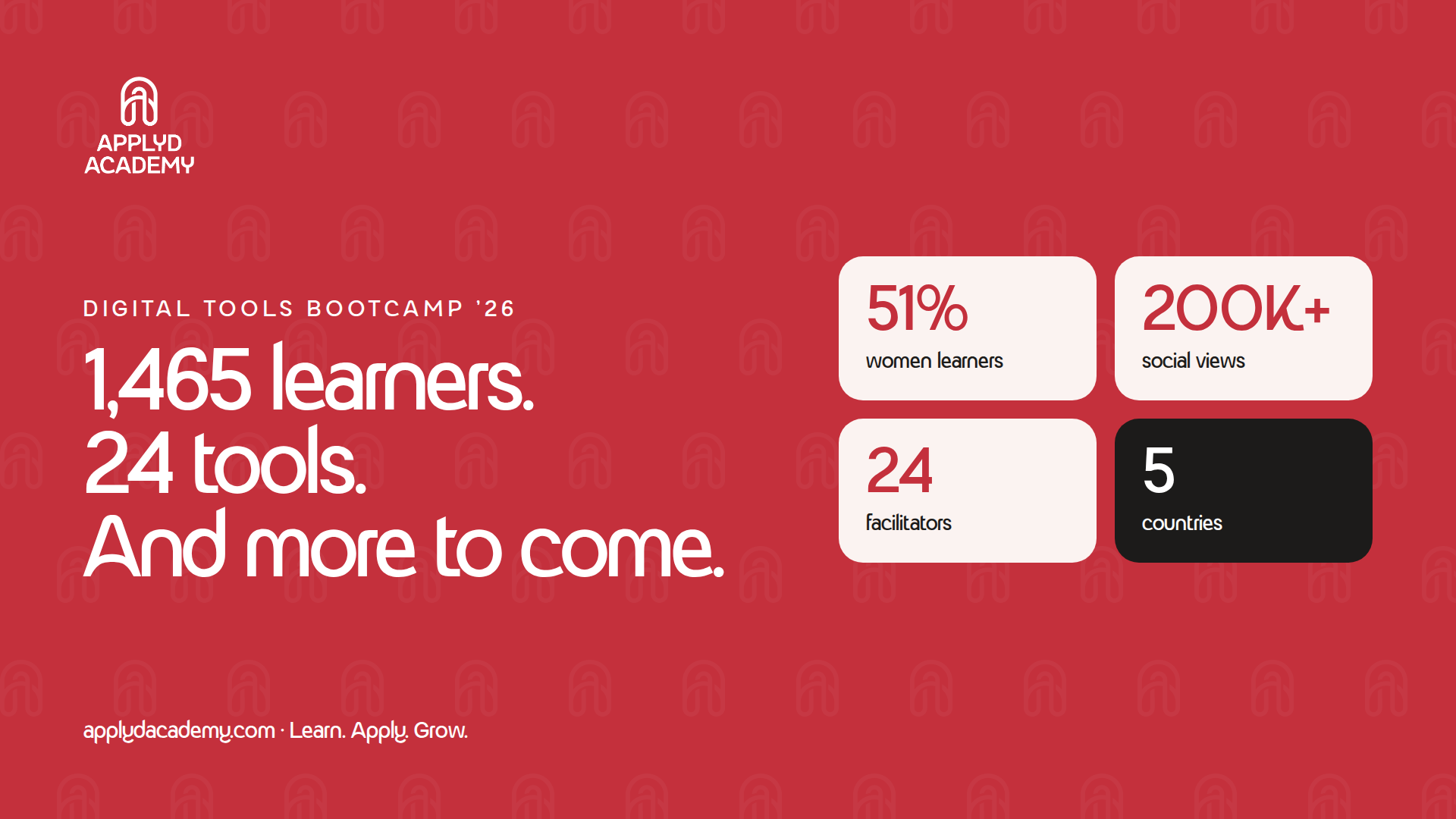
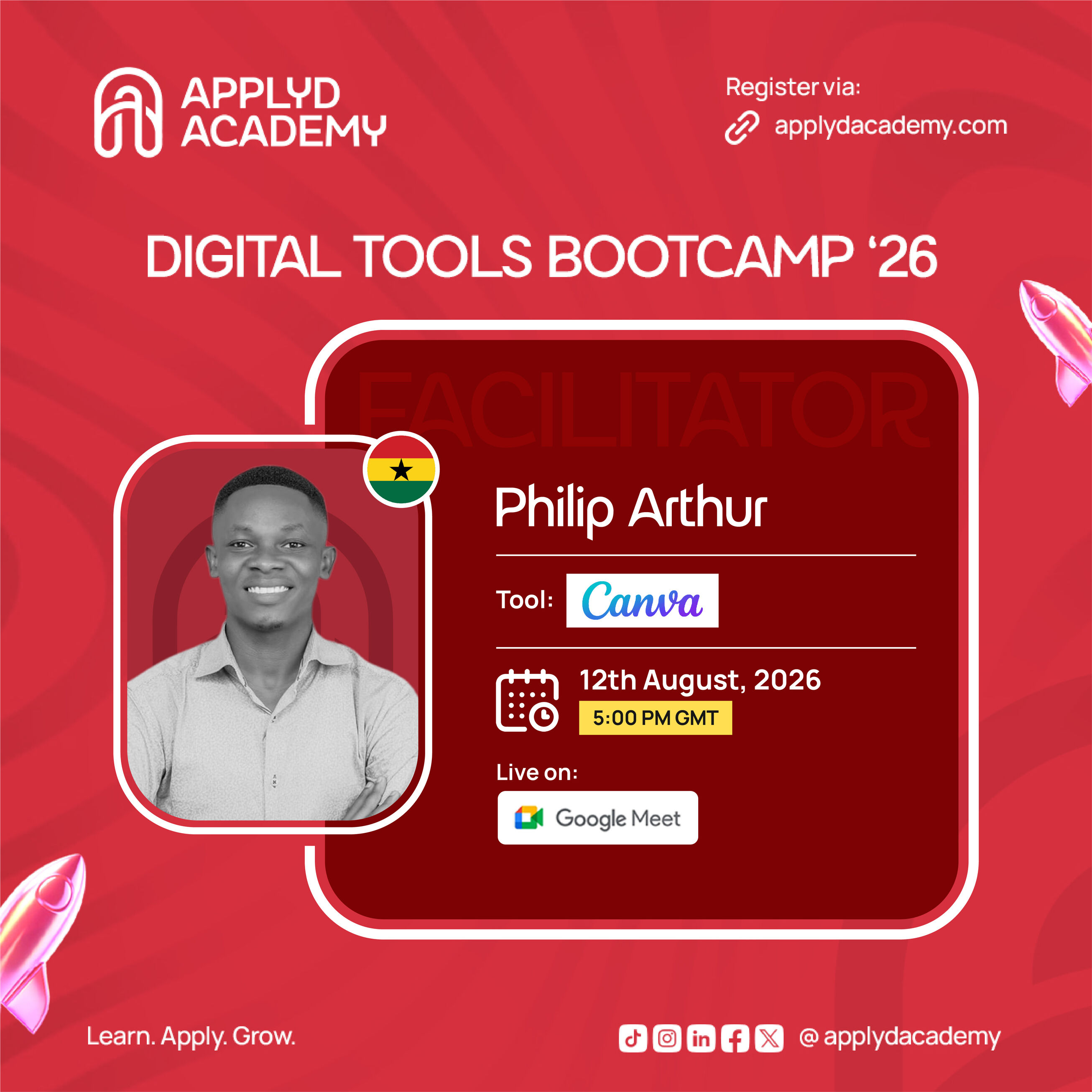
To help with this, Applied Academy ran a live class on graphic design and Canva. Philip Arthur, a digital marketing and design trainer, led the class. People joined from Ghana, Kenya, Nigeria, and other countries to learn how to make flyers, posts, and presentations that look professional.
This article breaks down what was taught, in plain English, so anyone can follow along, whether you use Canva already or have never opened it.
Why Practice Matters More Than Theory
Many online courses give people a certificate. But a certificate does not always mean a person can actually do the job.
Applyd Academy built its class around this problem. The class was roughly 80% hands-on practice and 20% theory. Students got just enough background to understand the basics. Then they spent most of the time actually building designs.
This is the main idea behind the school's teaching style: less talking about Canva, more using Canva.
What Is Graphic Design? The Basics Explained
Many people think graphic design is only for trained artists. This is not true.
Graphics are simply visual materials used to communicate. Businesses use them to promote products. Schools use them to teach. Organisations use them to raise awareness.
The class focused on four common design types:
- Logos
- Flyers
- Brochures
- Banners
You do not need to be an artist to make good graphics. You need to understand a few basic rules. Those rules are explained below.
Canva Is More Than a Design Tool
One thing that surprised many people in the class: Canva is not just for pictures.
Canva can also be used to edit videos and make video content. This means one platform can be used by students, business owners, and content creators for many types of digital work, not just graphics.
Other tools used for graphic design include Adobe Creative Suite, CorelDRAW, and Adobe Express.
The Two Building Blocks of Good Design
Good designs are not made by accident. They come from two groups of building blocks.
1. Elements of Design
These are the individual pieces used in any design:
- Colour
- Shape
- Line
- Images
- Icons
- Typography (text)
In Canva, each of these can be moved and edited on its own, like a separate layer.
2. Principles of Design
These are the rules for how the elements above are arranged:
- Balance
- Variety
- Repetition
- Contrast
- Tone
- Harmony
- Alignment
These rules turn a random mix of shapes and text into something that looks planned and professional.
A helpful tip from the class: Design ideas rarely come from nowhere. Even professional designers look at other people's work for inspiration. The key is to use that inspiration to build your own idea, not to copy it directly. Always give credit to the source when it is appropriate.
A Quick Tour of the Canva Interface
Before building anything, the class covered the main sections inside Canva:
- Home – shows recent designs and suggests what to create next.
- Projects – a way to organise work by client or brand.
- Templates – ready-made designs you can adjust instead of starting from a blank page.
- Brand Kits – a saved set of a brand's logo, colours and fonts, so every design stays consistent.
- Canva AI – used for quick changes and new ideas, such as adjusting colours or shapes, without leaving the app.
Every design starts as an idea. That idea should be thought through carefully before the actual design work begins. Simply throwing visual elements together does not make an effective graphic; it takes planning.
Step-by-Step: How to Build a Flyer in Canva
During the class, the trainer built a Facebook flyer for a travel agency, live, in front of the group. Here is the process, which can be used for almost any social media graphic:
- Start with the background. Every design begins as a blank white layer. Change it to a solid colour, a gradient, or an image you search for or upload.
- Add your logo and brand elements. Use tools like the background remover so images blend cleanly into the design.
- Add shapes, such as rectangles or circles, to frame text or images. Adjust the corners and colours for a cleaner look.
- Add text. Keep your brand's fonts and colours consistent by using the Brand Kit.
- Add a call to action, such as "Call us now." Style it so it stands out from the rest of the design.
- Export your design using the Share button. Choose the right file type — JPEG, PNG, PDF, or even PPTX if it will become a presentation.
A useful shortcut: If you already made a flyer for Facebook and now need it for Instagram, you do not need to start again. Canva's Resize tool changes an existing design to new dimensions in just a few clicks.
Common Canva Questions, Answered
Which devices can run Canva?
Canva works on smartphones, tablets, and computers. There are mobile apps too, but a computer is best for full access to every feature.
Should I use the free plan or pay for Canva?
If you design often, or need advanced features like video editing, the paid plan is worth it. If you only use Canva now and then, the free plan is enough.
Why won't one word in my text turn bold?
This is a common problem for beginners. To fix it, highlight only the word or phrase you want to change, not the whole text box. Note that some fonts do not support bold text at all, which can also cause this issue.
I don't have a credit card. Can I still pay for Canva?
Yes. You can use a virtual card to subscribe to Canva's paid plans through the App Store or Google Play Store.
The Bigger Picture
The trainer ended the class with an important point: in the workplace, no one asks you to explain what Canva is. They ask if you can use it to design something they need.
This is the gap Applied Academy is trying to close with its practice-first teaching style. It runs across the school's wider course list too, which includes SEO, marketing mathematics, Meta Ads and Adobe Suite training.
This Canva class gave beginners a clear, simple path into graphic design. It covered why graphics matter, the basic building blocks of good design, and a full walkthrough of building a flyer from a blank page to a finished, exportable file.
The lesson at the heart of it all: you do not need to be a professional artist to design well. You need to understand a few basic rules, and then practise using them.
Applyd Academy runs these live sessions regularly. The next class in the series covers Google Slides. Register at www.applydacademy.com.